Smooth Spins Account Login — Secure Sign-In with Email or Global iD

Everything you need to know about signing in to Smooth Spins Casino - from the standard email login and Global iD option to password recovery, KYC prompts and keeping your account secure. The login process takes under 30 seconds on both desktop and mobile.

Claim your welcome spins — UK players, 18+ only
Registerwith bonus

Two Ways to Log In

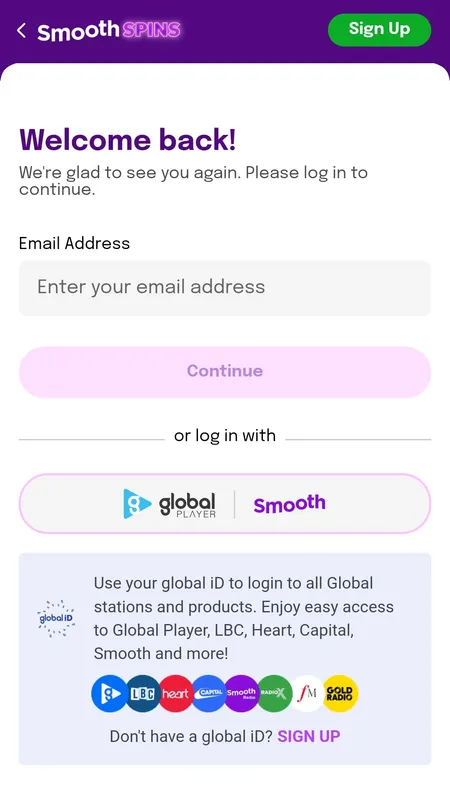
Smooth Spins Casino offers two distinct login methods, which is unusual for a UK casino and worth knowing about before you hit the sign-in button.

Email and password - the standard route. Enter the email address you registered with, type your password and click Continue. That is it.

Global iD - a single-account system run by Global (the media group behind Smooth Radio, Heart, Capital and Classic FM). If you already have a Global account from listening to these stations or using their apps, you can sign in to Smooth Spins with the same credentials. One login covers the entire Global network.

The Global iD button sits prominently below the email field on the login screen - it is not a secondary option but a genuine alternative that many UK users will find convenient.

Smooth Spins login screen showing email and Global iD options

The login screen shows the email field and Continue button, with the Global iD option clearly below it.

Go to Smooth Spins Login

Where to Find the Login Button

On the desktop site, the login button sits in the top-right corner of every page. It is labelled 'Login' and is always visible regardless of which section you are browsing.

On the mobile browser, the layout shifts to a compact header. The login button remains in the top-right area, though it may appear as a small icon on narrower screens. Tapping it opens the same email/Global iD form.

In the Android app or PWA, the login screen loads automatically if you are not already signed in. The app may also request location permission on first launch - this is required for UK compliance verification and cannot be skipped.

Access point Login button location
Desktop browser Top-right corner, all pages
Mobile browser Top-right header area
Android app Auto-loads on open
iOS web app Top-right, same as mobile browser

Step-by-Step: How to Sign In

The process is straightforward, but here is exactly what happens at each stage.

Login Process

  1. Smooth Spins email login form

    Step 1 - Open the login form. Go to the Smooth Spins site or app and click the Login button in the top-right corner. The 'Welcome back' screen loads with a single email field.

  2. Smooth Spins account dashboard after login

    Step 2 - Enter your credentials. Type your registered email address and click Continue. A password field appears on the next screen. Enter your password and confirm. If you prefer Global iD, click that button instead and authenticate through the Global network.

  3. Account verification status screen after login

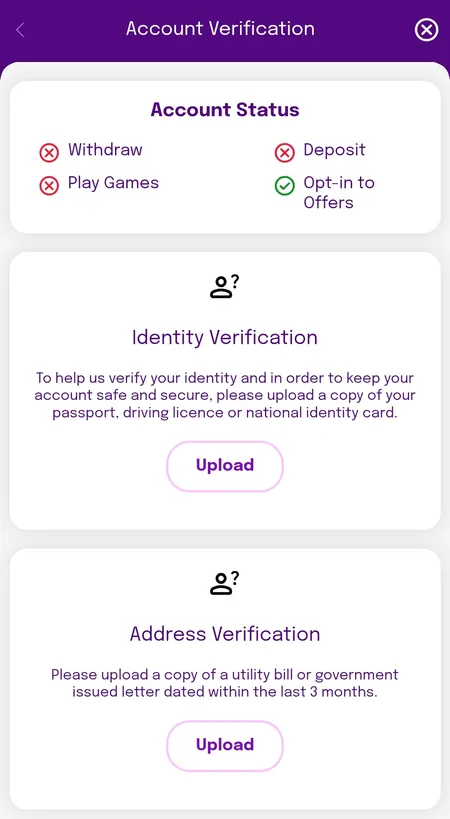
    Step 3 - Access your account. After successful authentication, you land on your account dashboard. If KYC is incomplete, an orange 'Account Verification' banner appears at the top. You can still browse games, but deposits and withdrawals require verified status.

Play at Smooth Spins Now

Password Recovery

If you cannot remember your password, the recovery process is quick.

On the login screen, click 'Forgot password?' below the password field. Enter the email address linked to your account. Smooth Spins sends a reset link to that address - check your spam folder if it does not arrive within a few minutes.

Click the link in the email, which takes you to a secure page where you can set a new password. The link expires after a short window for security reasons, so use it promptly.

Password requirements follow standard UK security practice: minimum 8 characters, a mix of letters and numbers is strongly recommended.

If you registered via Global iD and do not have a separate Smooth Spins password, you will need to reset your password through the Global account portal rather than the Smooth Spins recovery page.

✓

Password reset links arrive within 2 minutes in most cases. If you use Global iD to log in, password changes are managed through your Global account settings.

Logging In on Different Devices

Smooth Spins is fully optimised across all common platforms. The login experience is consistent whether you are on a laptop, phone or tablet.

Device Login method Notes
Desktop (Chrome/Firefox/Edge) Email or Global iD Full interface, no install needed
Mobile browser (iOS/Android) Email or Global iD Responsive layout, same features
Android app/PWA Email or Global iD Location permission required
iOS web app Email or Global iD No App Store install needed

Sessions stay active until you manually log out or clear your browser data. On the app, sessions typically persist between visits unless you explicitly sign out. If you share a device, always log out manually to keep your account secure.

Open Smooth Spins Casino

Common Login Problems and How to Fix Them

Most login issues fall into one of these categories.

Wrong email or password - the most frequent problem. Double-check you are using the email you registered with. Smooth Spins is case-sensitive for passwords.

Account not yet verified - after registration, you receive a verification email. If you did not confirm your email address, login may be restricted. Check your inbox for the confirmation message.

Browser cache or cookies - stale cached data can cause login loops. Clear your browser cache or try an incognito window.

App out of date - if you are using an older version of the Android app, update it through the source you downloaded it from. Outdated versions can lose compatibility with the authentication system.

Too many failed attempts - after several incorrect password entries, access may be temporarily restricted. Wait a few minutes or use the password reset option.
✕

If your account is showing as suspended or restricted after login, contact Smooth Spins live chat (available 24/7) directly. Account restrictions are often related to incomplete KYC documents or responsible gambling limits you previously set.

Account Access After Login

Once signed in, your dashboard gives you full access to the following.

  • Main Balance and Bonus Balance - displayed separately at the top of the account screen
  • Deposit and Withdraw - quick-action buttons directly on the dashboard; deposit details here
  • Game History and Banking History - complete transaction logs
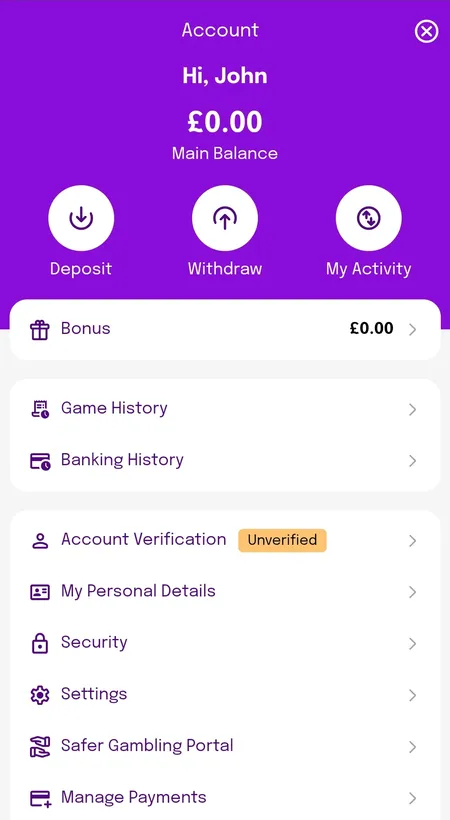
  • Account Verification status - orange indicator if documents are still needed
  • My Personal Details - update contact information and address
  • Security settings - password changes and session management
  • Safer Gambling Portal - deposit limits, time-outs and self-exclusion tools
  • Manage Payments - add or review saved payment methods

The account is built around the Smooth Spins Casino home page so all features are accessible within one or two taps from any section.

Smooth Spins account dashboard showing balance and quick actions

The account dashboard displays Main Balance, Bonus Balance, and quick-access buttons for Deposit, Withdraw and My Activity.

Sign In and Start Playing

Login and KYC Verification

Smooth Spins is licensed by the UK Gambling Commission (licence number 39576), which means identity verification is mandatory before full account access.

After your first login post-registration, you may see a 'Verify Your Account' prompt. This does not block you from browsing the site, but deposits, withdrawals and bonus claims require completed KYC.

The verification screen shows three statuses: Identity Verification (passport, driving licence or national ID), Address Verification (utility bill or government letter dated within 3 months), and overall Account Status.

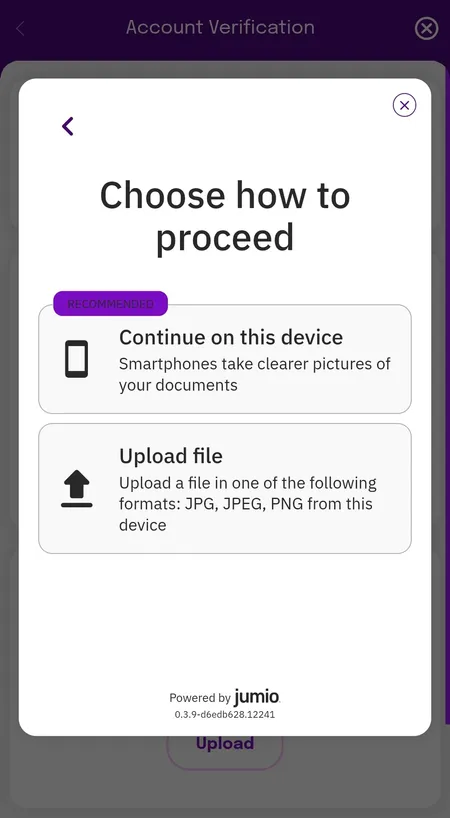
Documents are uploaded directly through the account section. The process uses Jumio - you can either photograph documents on your device or upload image files in JPG, JPEG or PNG format. Most verifications complete within 24 hours.

Jumio document upload screen for Smooth Spins KYC

Jumio offers two options: photograph documents live on your device (recommended) or upload existing image files.

Signing Out Safely

To log out, open the account menu and scroll to the logout option. On mobile, this is usually at the bottom of the account screen.

For added security, you can end all active sessions from the Security section of your account settings. This is useful if you recently used Smooth Spins on a shared or public device.

Security recommendations:

  • Use a unique password not shared with other sites
  • Avoid logging in over public Wi-Fi without a VPN
  • Do not share your login credentials with anyone
  • If you suspect unauthorised access, change your password immediately and contact support

Smooth Spins uses SSL encryption across all pages and transactions. Login credentials are never stored in plain text.

Login FAQ

Why is my Smooth Spins password not working?

Check you are using the correct email address and that your password is entered exactly as set (it is case-sensitive). If you have forgotten it, use 'Forgot password?' on the login screen to reset via email.

What is Global iD and do I need it?

Global iD is an optional single sign-on system from Global Media. If you already have an account with Smooth Radio, Heart, Capital or another Global station, you can use those same credentials. It is not required - standard email login works independently.

I registered but cannot log in. What should I do?

Make sure you confirmed your email address after registration. Check your inbox (and spam folder) for a verification message from Smooth Spins. If your email is confirmed but login still fails, contact live chat.

My password reset email has not arrived. What next?

Check your spam or junk folder first. If it is not there after 5 minutes, try requesting another reset. If you used Global iD to create your account, the reset happens through Global account settings, not the Smooth Spins page.

Can I stay logged in on my phone?

Yes. The Smooth Spins app and mobile browser version both retain your session between visits unless you explicitly log out or clear your app data.

Why does the app ask for my location?

UK regulations require location verification to confirm you are accessing the casino from within Great Britain. This permission is mandatory and cannot be bypassed.

What happens if I enter my password wrong too many times?

After several failed attempts, access is temporarily restricted as a security measure. Wait a few minutes before trying again, or use the password reset option.

Can I log in on multiple devices at the same time?

Generally yes, though for security you should log out of devices you are no longer using. The Security section in your account settings lets you manage active sessions.

Your Smooth Spins account is ready when you are. Sign in now to access over 1,500 games, your bonuses and fast Visa FastFunds withdrawals.